5 Basic Setup ( DV800 Series )

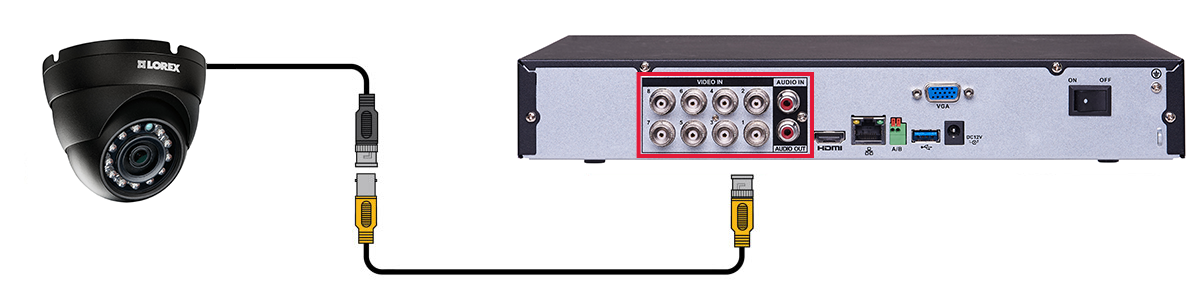
5.1 Step 1: Connect the BNC Cameras
-
Connect
Lorex
MPX or standard analog cameras to the Video Input ports on the rear panel of the DVR.
![Graphic]() Push and twist the BNC connector clockwise to secure it to the BNC port.
Push and twist the BNC connector clockwise to secure it to the BNC port.
5.2 Step 2: Connect the Mouse
-
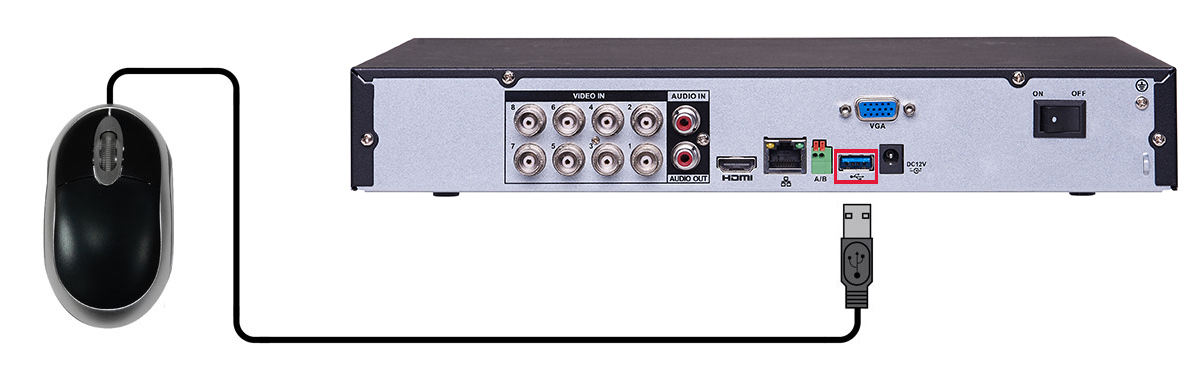
Connect a USB mouse (included) to one of the USB ports.
![Graphic]()
5.3 Step 3: Connect the Ethernet Cable
-
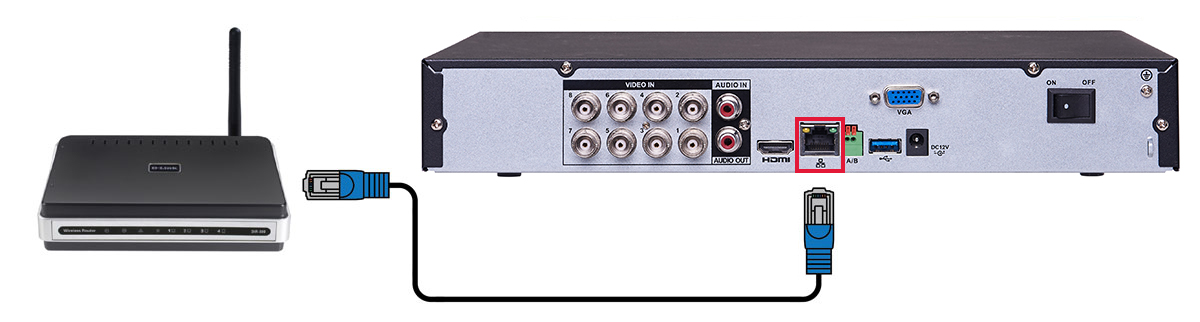
Connect an Ethernet cable (included) to the LAN port on the rear panel of the DVR. Connect the other end of the Ethernet cable to a router on your network.
![Graphic]()
5.4 Step 4: Connect the Monitor
-
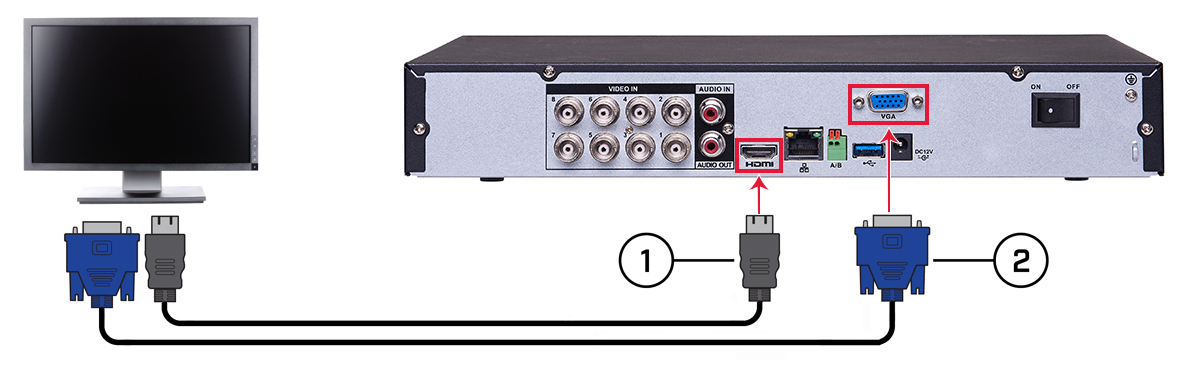
Connect the included HDMI cable from the HDMI port to the TV or monitor (recommended).
OR
-
Connect a VGA cable (not included) from the VGA port to the monitor.
![Graphic]()
- HDMI port.
- VGA port.
5.5 Step 5: Connect the Power Adapter and Power on the DVR
- Connect the included power adapter to the DC 12V port. Connect the end of the power adapter to a wall socket or a surge protector.
-
Turn the power switch to ON to turn on the DVR.
![Graphic]()
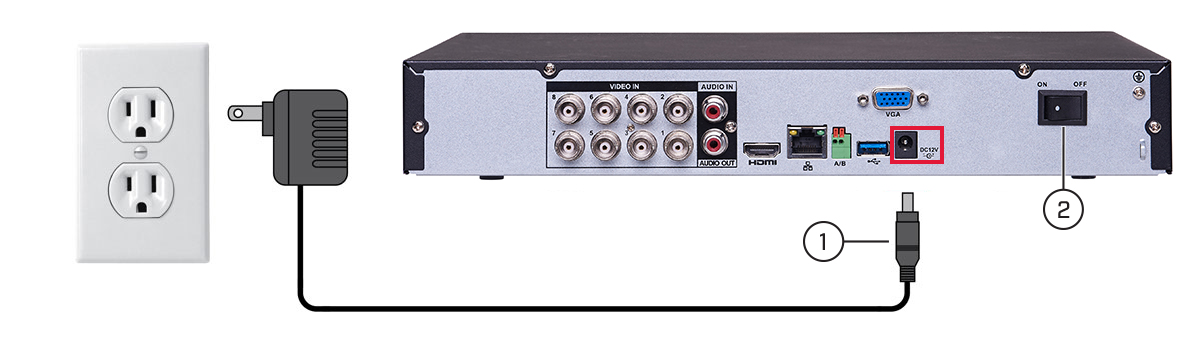
At startup, the system performs a basic system check and runs an initial loading sequence. After a few moments, the system
loads a live display view and prompts you to create a new, secure 6 character password.
5.6 Step 6: Creating a New, Secure Password
When using your system for the first time, you will be prompted to create a new, secure 6 character password.
- Enter a new, secure 6 character password for the DVR and click OK. Record your password and store it in a secure place, this password will be used to connect to your system from now on.
5.7 Step 7: Upgrade Firmware to Latest Version (if Available)
If a firmware upgrade is available, you will be asked to install it once the system starts up. It is required to upgrade your
system firmware and client software or mobile apps to the latest version to enable remote connection to the system.
- After startup, a notification will appear asking you to upgrade the firmware. Click OK to upgrade.
- Enter the system user name (default: admin) and your new, secure password.
- Click OK. Wait for the firmware update to complete. The system will restart once the firmware has been upgraded.
If a firmware upgrade is available:

5.8 Step 8: Verify Camera Image
- Power on the cameras, and then verify the camera video quality before mounting the cameras to a permanent location.
- Mount the cameras under a sheltered location. Always verify the outdoor rating of your camera before installing it in a permanent location.
5.9 Step 9: Set the Time
- Set the system time and date for accurate video time stamps. Videos with inaccurate times may not be valid as surveillance evidence.
- For details on setting the system time, see 10 Setting The Time .
5.10 Default System Password & Port Numbers
A user name and password is required to log in to the system. Use the new, secure 6 character password created during initial setup to access your system.
- Username: admin
- Password: Secure 6 character password created during initial setup.
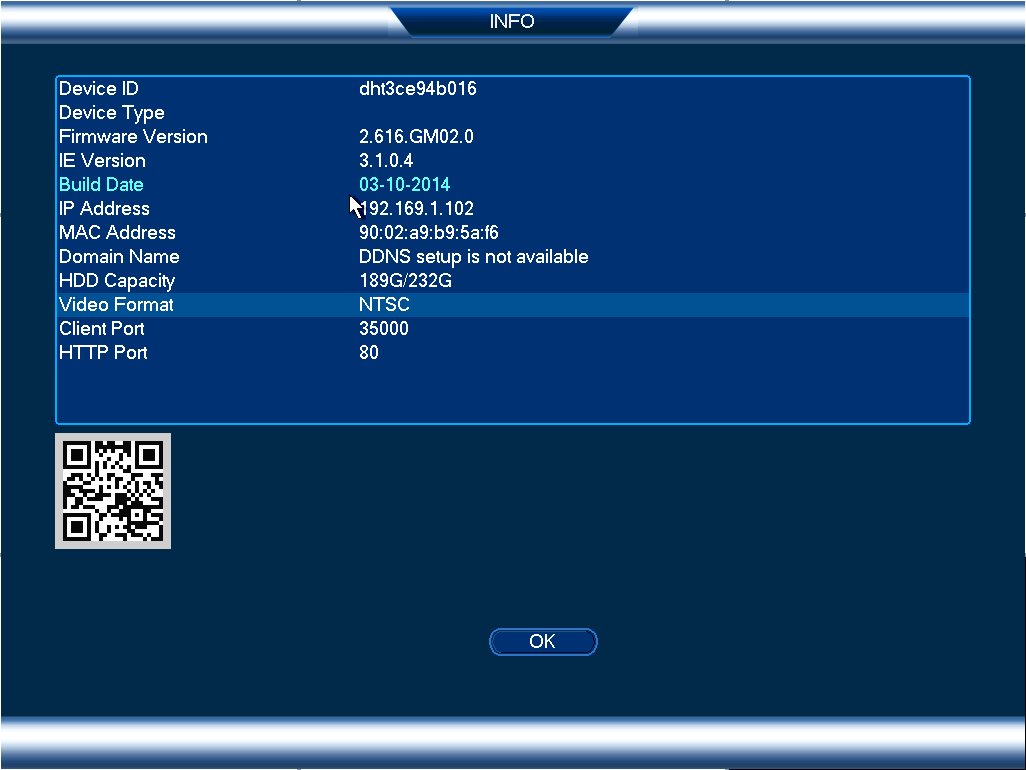
Local system and remote connectivity (LAN & Internet) user name and password:
- Port 80 (HTTP port)
- Port 35000 (Client port)
Default ports for DDNS remote access:
5.10.1 FLIR Cloud™
This system features the exclusive FLIR Cloud™. This is a cloud service that allows you to connect to your system over the Internet via a secure handshake with our servers.
This means you can easily connect to your system without requiring any network configuration.
-
See
16 Connecting to Your System Over the Internet on PC or Mac
.
OR
- See 18 Connecting to Your System Using Smartphone or Tablet Apps .
For details on setting up your system to connect to the Internet using FLIR Cloud™:
Connectivity using
Lorex
’s free DDNS service is also available, and requires the ports listed above to be port forwarded on your router. See
19 DDNS Setup (Advanced)
for DDNS setup instructions.