7 Using the DVR’s On-Screen Display
Use the system’s graphical on-screen display to navigate menus and configure options and settings.
7.1 Using the Taskbar
The Taskbar along the bottom of the DVR’s main display allows you to access the Main Menu and control basic functions of the DVR.

- Main Menu: Opens the Main Menu for browsing. For details on Main Menu functions, see 13 Using the Main Menu .
- Viewing Options: Select how many channels are shown on screen during live viewing.
- Playback: Opens the Playback Menu. This allows you to search for video recordings saved on the DVR’s hard drive. For details on using the Playback menu, see 9 Playback .
- System Information: Displays system information.
- Auto Upgrade: Checks for an available firmware update.
- System Date & Time: Shows the date and time of the system.
-
Pin / Unpin Taskbar: Choose to always show the Taskbar on screen (
![icon]() ) or hide it unless the mouse pointer is near the bottom of the screen (
) or hide it unless the mouse pointer is near the bottom of the screen (![icon]() ).
).
 ) or hide it unless the mouse pointer is near the bottom of the screen (
 ).
).7.2 Using the Quick Menu
The Quick Menu gives you quick access to functions which can also be accessed using the Taskbar.
To use the Quick Menu:
- Right-click on a camera channel in the live viewing screen.
-
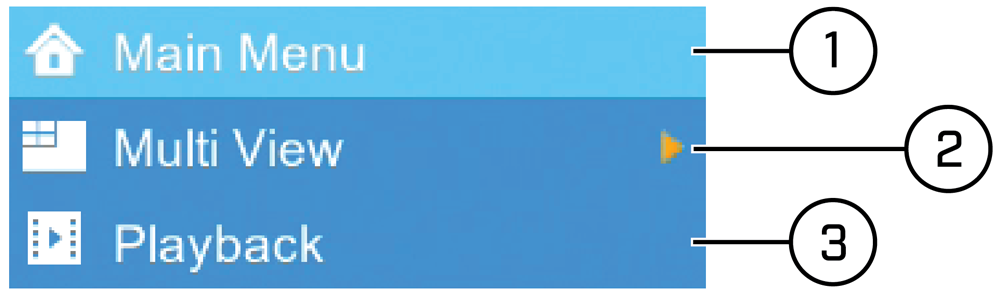
The Quick Menu appears:
![Graphic]()
- Main Menu: Open the Main Menu. For details on Main Menu functions, see 13 Using the Main Menu .
- Multi View: Select how many channels appear on the live display at once.
- Playback: Search for and play back recorded video. For details on using Playback, see 9 Playback .
7.3 Using the Mini Menu
The Mini Menu lets you perform quick functions for a specific channel on the DVR.
To use the Mini Menu:
- Hover the mouse near the top of a channel with a connected camera.
-
The Mini Menu opens at the top of the camera’s live display:
![Graphic]()
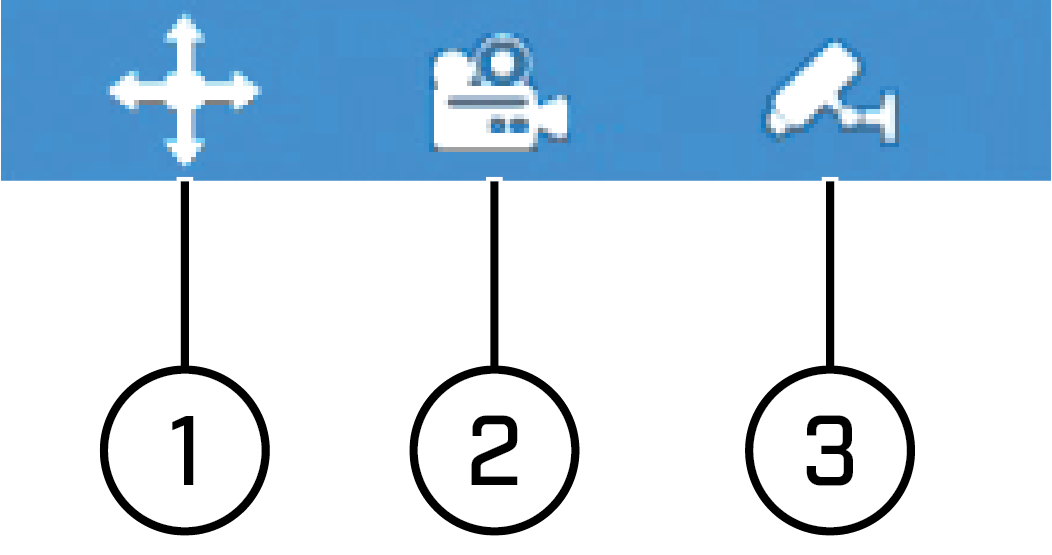
- Move Mini Menu: Click-and-drag to move the Mini Menu to a different part of the screen.
- Manual Recording: Click to manually record video from the selected channel. Password entry required.
- Pair: Click to pair a Wire-Free camera to the selected channel. For more information on pairing, see 12 Pairing Cameras .

7.4 Using the On-Screen Keypads
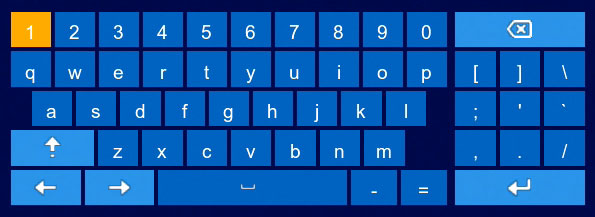
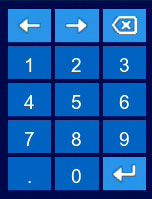
The Full Keypad is used to input alphanumeric characters, such as in user name or password fields. The Number Keypad is used to input numeric characters only, such as in the time or date fields.
To use the Full Keypad:
-
Using the mouse, click on a field where alphanumeric characters are entered, such as the user name and password fields.
-
The Full Keypad opens:
![Graphic]()
-
Click
![icon]() to switch between uppercase and lowercase characters.
to switch between uppercase and lowercase characters.
-
Click
![icon]() /
/ ![icon]() to move the cursor.
to move the cursor.
-
Click
![icon]() to backspace / delete characters.
to backspace / delete characters.
-
Click
![icon]() to confirm what you have entered.
to confirm what you have entered.
- Right-click to close the Full Keypad.
-
The Full Keypad opens:
 to switch between uppercase and lowercase characters.
 /
/  to move the cursor.
 to backspace / delete characters.
 to confirm what you have entered.
To use the Number Keypad:
-
Using the mouse, click on a field where numeric characters are entered, such as the date or time fields.
-
The Number Keypad opens:
![Graphic]()
-
Click
![icon]() /
/ ![icon]() to move the cursor between letters.
to move the cursor between letters.
-
Click
![icon]() to backspace / delete numbers.
to backspace / delete numbers.
-
Click
![icon]() to confirm what you have entered.
to confirm what you have entered.
- Right-click to close the Number Keypad.
-
The Number Keypad opens:
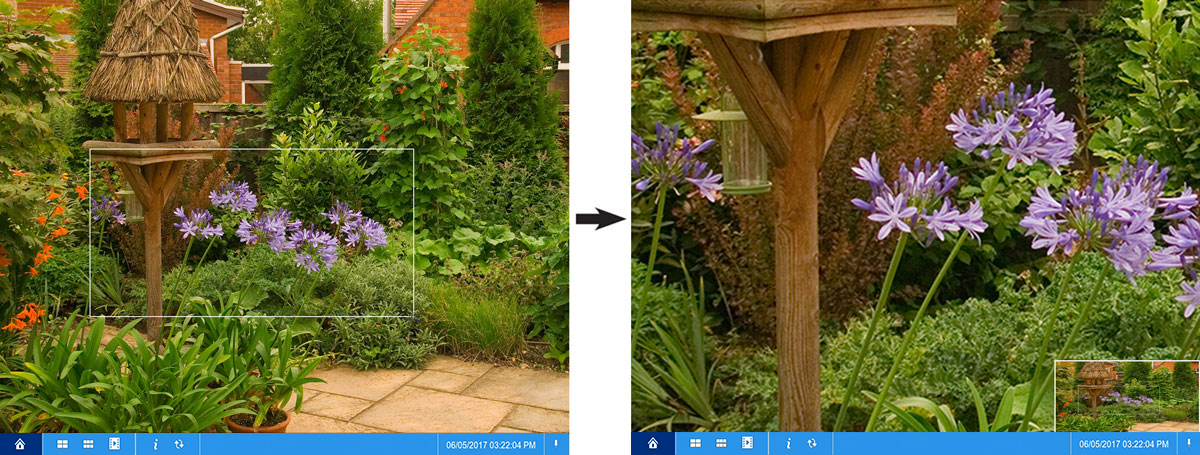
7.5 Using Digital Zoom
Zoom in on an area of live video to enlarge a part of the image.
To use digital zoom:
- During live view, hover near the top of the channel to reveal the Mini Menu.
-
Click
![icon]() .
.
-
Click-and-drag on the video image to select an area to enlarge.
The enlarged image is shown in full screen. A Picture-in-Picture view in the bottom-right corner shows the full image with the zoom area highlighted.
![Graphic]()
- Right-click to return to live viewing.
 .
.